
The practical answer
Removing a saved password, signing out of a website and ending access on another device are different tasks. Before travel, review them separately on a trusted device. Keep a working recovery route before removing anything, and check each service’s own sign-out instructions instead of assuming one action closes every session.
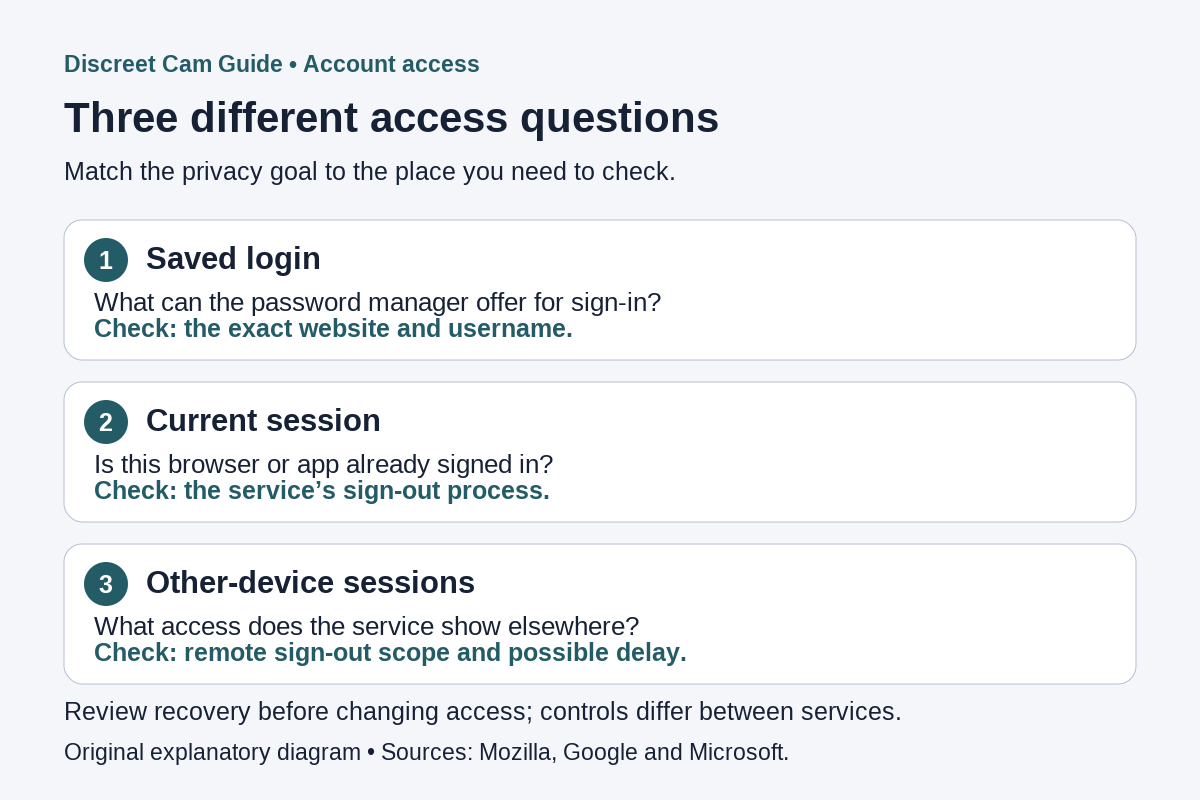
This original November travel checklist addresses a practical privacy question, not a newly announced cam-platform feature or a quantified trend. Official vendor documentation was checked on 13 November 2026. Examples explain account controls; they do not establish which features an adult provider offers.
One account can have three different access boundaries
Consider a laptop you intend to leave at home while travelling. Its password manager might hold a login for a sensitive service, while a tab is already signed in to that service. A second browser on an older tablet might have its own session. Looking only at the saved-password list cannot answer whether either browser is still authenticated.
The diagram separates the questions. A saved login is something a password manager can offer when you need to authenticate. A current session is access already established in a browser or app. Other-device sessions belong to the service’s broader account controls, if those controls are available. The boundary you want to change determines where to look.
For privacy-conscious adults, that makes account housekeeping more precise. Write the desired outcome first: no autofill on this laptop, no open account here, or no continued access from an old device. You can then check the matching control without deleting information merely because its name sounds relevant.
Review saved logins without losing your recovery route
Mozilla’s Firefox password-manager documentation describes stored usernames and passwords and the controls for viewing, editing or removing a saved login. It also notes that a site can have more than one saved account. Open the manager on your own trusted computer and identify the exact website and username before making a change.
A saved entry is useful evidence about what the manager holds; it is not a list of every place the website is signed in. Removing an entry from the manager addresses that stored credential. For a session question, move on to the website’s account controls rather than assuming removal answered it.
Before you remove a login you still need, establish how you will sign in later and whether you can use your existing recovery method. Do not export an entire password collection to an ordinary document for convenience. Keep passwords, recovery details and private account names out of travel notes or screenshots you might casually share.
Reference: Mozilla: manage stored logins and passwords in Firefox.
Check the website session separately
If your aim is to leave a device without an open account, use the service’s own sign-out control. Then follow its documented exit steps and inspect the result without logging straight back in. Make sure you are checking the intended account and browser profile. A comparison guide, an email account and a room provider are separate destinations with separate account boundaries.
For a provider, look for official help on active sessions, remembered devices and sign-out. Ask support through the provider’s known help route if the scope is unclear. Do not assume every adult platform supplies a device list, that closing a tab signs out, or that an email-account action changes the provider session.
Keep the task proportional. You do not need to delete an account just to stop using a particular laptop. Equally, a password-manager cleanup is not proof that a service has deleted account records. If your objective is data deletion, read that service’s deletion policy and process as a separate decision.
A device list needs interpretation: the Google example
Google’s account help provides a concrete example of remote session review. In the account security area, its devices panel opens a list of devices or sessions. One physical device can have several sessions, so repeated device names do not by themselves prove that someone else has access.
Google also explains that the displayed time reflects communication with its systems, including background syncing. It need not equal the last moment you deliberately used the device. Review the details and context before drawing a conclusion from a timestamp or approximate location.
For an old or borrowed device, use the documented sign-out action. Google advises signing out of all sessions with the same device name when you need to ensure access from that device is ended. Apply those instructions to Google accounts only; check a room provider’s own help for its equivalent, if any. An unfamiliar entry merits that service’s account-security workflow, not a guess based only on the label.
Reference: Google: review devices and sessions with account access.
Remote sign-out can have a delay and exceptions
Microsoft’s personal-account documentation illustrates why you should read the scope before relying on a broad sign-out button. It says signing out everywhere can take up to 24 hours and excludes Xbox consoles. That is a specific vendor rule, not a universal timetable for websites.
For your own accounts, ask three questions: which sessions does the action cover, when should it take effect, and what follow-up does the service recommend? Plan routine access reviews before departure so you have time to resolve uncertainty. If you suspect unauthorized access, follow the service’s security process promptly instead of treating a delayed sign-out as the whole response.
Avoid making several unfamiliar security changes at once just before travelling. A sequence you understand is easier to verify and less likely to leave you unable to use an important account. Keep legitimate records of actions without copying passwords, private messages or full account identifiers into a checklist.
Reference: Microsoft: sign out of a personal account everywhere.
A practical before-and-after access checklist
Before departure, list the devices you actually use and mark any you no longer control. On a trusted device, confirm your intended recovery route. Inspect saved logins only where autofill is part of the concern. Sign out of sensitive services on devices you are leaving behind, then review remote-session controls where the service provides them.
After a visit, leave the room, use the provider’s sign-out process and close the appropriate windows. If you used another person’s computer, avoid changing their password-manager settings or removing their saved entries. Our shared-device article explains the separate limits of private browsing; it should support the exit routine rather than replace account controls.
The useful end state is a short set of verified observations: the intended saved entry was reviewed, the local session was ended according to the service’s instructions, and old-device access was checked where available. None of those observations proves the absence of retained provider records or makes an untrusted device suitable for sensitive activity. If you cannot establish a boundary you need, postpone the visit until you can.
Continue with the guides
Sources and editorial scope
- Mozilla: manage stored logins and passwords in Firefox
- Google: review devices and sessions with account access
- Microsoft: sign out of a personal account everywhere
Prepared with AI assistance and checked against public vendor documentation. This is not a provider security audit. Read our editorial policy and affiliate disclosure. Provider sites control their accounts, payments and policies.