
The practical answer
Private browsing can reduce what a browser keeps locally after a session. It does not erase records held by an account, remove downloaded files or make an untrusted computer safe. Before borrowing a laptop, decide which of three surfaces you need to protect: the device, the accounts you use and the connection.
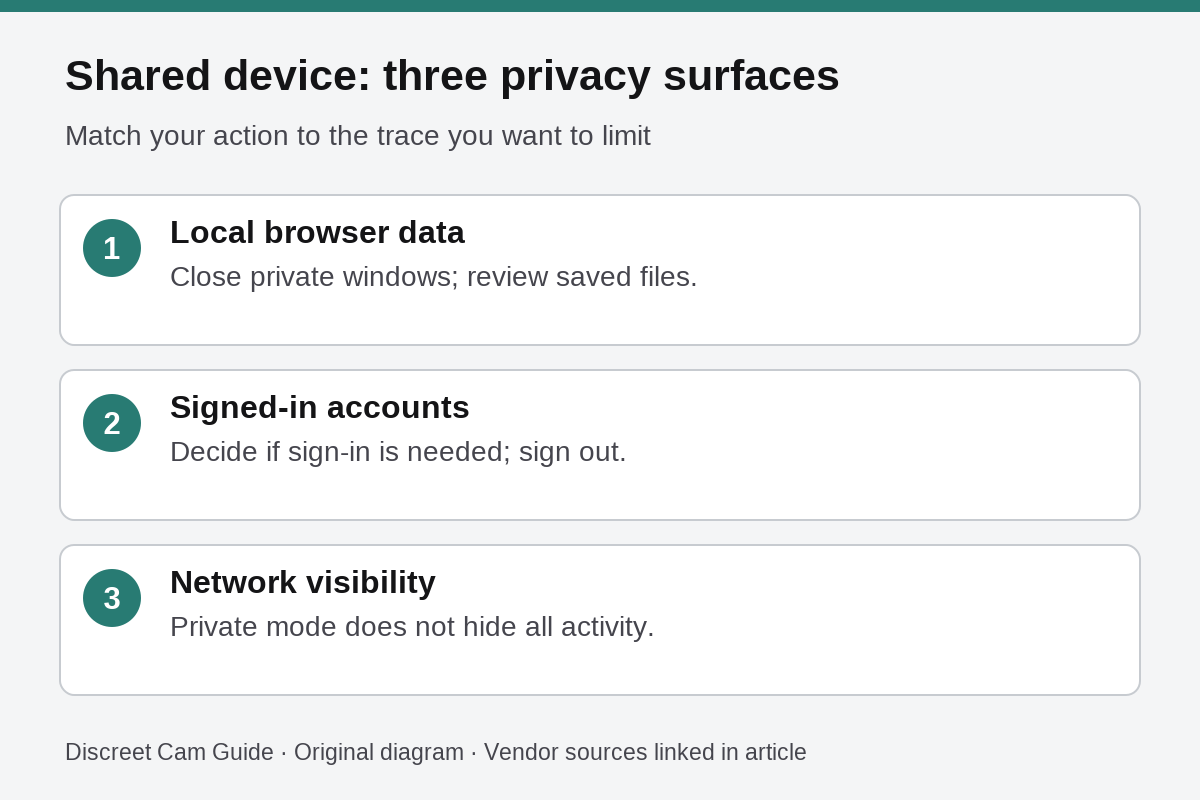
This is an original November travel and shared-device checklist. We found no defensible new niche trend to quantify. The browser vendors’ current instructions were checked on 4 November 2026; this is guidance, not a forensic privacy guarantee.
Start with three different kinds of trace
Imagine checking a provider’s room rules on a relative’s laptop while travelling. You might want the next person using the browser not to see those page visits. You might also want to avoid leaving your account signed in. Finally, you might worry about who runs the network. A private window addresses only part of this situation.
The diagram separates these concerns so you can choose an appropriate action instead of relying on one privacy label. A local browser setting does not control every system involved in a visit. Make a short list before opening anything sensitive: whose device is this, which account will I use, and who controls the connection?
If the device is not trustworthy, the most practical answer may be to postpone the visit. A fresh browser window cannot tell you what software is installed, what management policies apply or whether someone else can inspect the screen.
Surface 1: What remains on the device?
Mozilla explains that Firefox Private Browsing avoids keeping browsing history from the private session and removes its session cookies when the private windows are closed. It also documents exceptions: files you download remain on the computer, and bookmarks you create are retained. Closing a tab is therefore not a universal cleanup action.
Before using a shared browser, decide not to download sensitive material or create bookmarks you do not want to leave. If a purchase requires a receipt or record, think about where it will go before proceeding. You should not have to choose between keeping an essential record and leaving it on someone else’s machine.
For an adult service, a viewing-only information visit may be enough to answer your question. Read the privacy and payment guides first. Avoid turning a quick comparison into an account-registration task on a borrowed device simply because a page makes registration convenient.
Reference: Mozilla: Private Browsing and its limits.
Surface 2: What is connected to your account?
Chrome’s Incognito documentation explains that websites, including Google services, can associate activity with an account when you sign in. This is why a clean-looking local history should not be treated as evidence that no account record exists. The provider’s own account rules and retention practices remain relevant.
Before signing in, ask whether you need the account at all for the information you want. If you do, check which username is active and whether the page offers a remembered-login option. Do not casually accept a save-password prompt on a borrowed computer. At the end, use the service’s sign-out control as part of your exit routine.
Email receipts, security alerts and billing messages create another practical consideration: the address receiving them. Inspect the account details you intend to use and read the provider’s current description of communications. This article cannot promise that a private window suppresses a message or changes a payment record. Those questions belong with the service handling the account and checkout.
Reference: Google Chrome: Browse in Incognito mode.
Choose the right starting point on a trusted computer
Google distinguishes Chrome Guest mode from browsing within an existing Chrome profile. Guest mode is intended for situations such as borrowing or sharing a computer; it does not expose another profile’s stored information, and its browsing history, cookies and site data are deleted when you exit. Availability varies, so use the instructions for your device.
This can provide a clearer boundary than opening the owner’s normal tabs and then trying to remember which changes you made. Still, Google specifically advises signing into sensitive sites only on trusted devices. Guest mode is a browser arrangement, not an inspection of the machine.
If you use your own computer, a separate everyday operating-system account for each person may make the household workflow easier to manage. Treat that as an organizational choice to discuss with the device owner. Do not change another person’s browser settings or delete their history while trying to protect your own visit.
Reference: Google Chrome: Browse as a guest.
Surface 3: Who controls the connection?
Browser vendors explicitly warn that private browsing does not hide all activity from network operators or internet providers. Do not interpret a private-window icon as anonymous internet access. The precise visibility depends on the connection and services involved; the icon alone cannot establish it.
For travel, make the decision before entering account or payment details. If you are unsure about the device, network or destination, stop and use a setup you trust later. Do not bypass browser security warnings just to finish a session. This checklist does not recommend installing tools on a borrowed machine or promise that any single tool solves all privacy concerns.
Reference: Google Chrome: Browse in Incognito mode.
A practical before-and-after checklist
Before: confirm you are legally permitted to use the service, choose a trusted device, decide whether sign-in is necessary, and read the relevant room and payment rules. Identify where you will keep any essential records. If using a shared computer would require compromises you dislike, postpone the visit.
After: leave any room, sign out of accounts, close all private or Guest windows, and check for downloads or bookmarks you deliberately created. Keep legitimate records somewhere appropriate that you control. Follow the provider’s own support process for account or billing questions rather than assuming a browser cleanup changes its records.
The useful outcome is a set of clear boundaries, not a claim that a visit left no trace. Use our anonymous-browsing guide for the wider limits, our mobile privacy guide for your own phone, and the payment guide before spending. A short pause before signing in is usually easier than reconstructing what happened after borrowing the device.
Continue with the guides
Sources and editorial scope
- Mozilla: Private Browsing and its limits
- Google Chrome: Browse in Incognito mode
- Google Chrome: Browse as a guest
Prepared with AI assistance and checked against public vendor documentation. This is not a provider security audit. Read our editorial policy and affiliate disclosure. Provider sites control their accounts, payments and policies.