
The practical answer
Before using a private window for a sensitive visit, inspect the extensions that can run there and their data permissions. Private browsing and extension access are separate controls. Keep only access you understand and need; a private-window icon is not proof that an extension cannot see the page.
On 10 November 2026, Mozilla published research explaining recent Firefox fingerprinting protections. That is a verified browser-privacy development, not a new extension feature or evidence of a cam-site incident. This article uses it as a reason to review separate privacy boundaries. Vendor instructions were checked on 20 November; no growth in searches or attacks is claimed.
What the November Firefox research changes about the question
Mozilla describes protections that reduce the distinguishing browser and device details available to fingerprinting scripts. Some protections apply in all browsing modes; others begin in Private Browsing or Strict Enhanced Tracking Protection. The company also says these changes do not make fingerprinting impossible. Its findings concern browser defenses, not a guarantee about every website or add-on.
That distinction matters when a privacy-conscious adult opens a comparison guide, reads provider rules or enters an account. A browser can improve one defense while a separately authorized tool still has permission to interact with page data. The sensible response is to inspect each boundary rather than treat a general privacy improvement as an answer to an extension question.
For this checklist, first write the task you need an extension to perform. A translation tool used on one ordinary page, for example, need not automatically belong in every sensitive session. That is a workflow choice, not a recommendation to disable useful browser protections or a claim that translation extensions are unsafe.
Reference: Mozilla Security Blog: fingerprinting research and protections, 10 November 2026.
Separate window access from website access
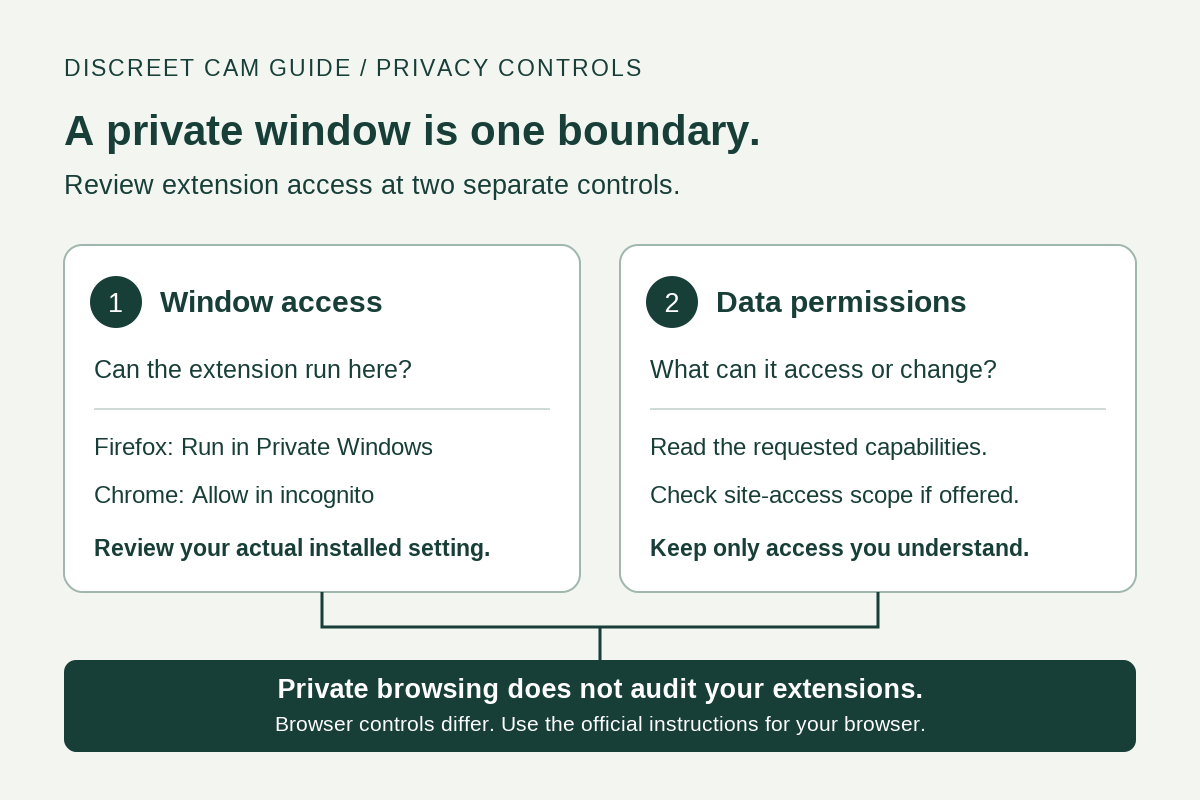
The illustration shows two different questions: can this extension operate in this kind of window, and what can it do on the website? Answer both using the installed browser and extension details. A recognizable toolbar icon, a store listing or the fact that an extension works in an ordinary tab does not establish its private-window configuration.
Make a small inventory on a trusted computer. For each installed extension, note its name, whether you still use it, whether private-window access is enabled and which permissions need explanation. Keep this note free of account names, private browsing history, passwords and room details. The purpose is to identify unnecessary access, not create a new record of sensitive activity.
Do not assume every browser has the same permission model or uses the same labels. Chrome’s site-access choices and Firefox’s extension permissions need their own instructions. Also distinguish a browser extension from a separate desktop application: changing one extension option does not review all software on the computer.
Check Firefox’s private-window permission explicitly
Mozilla’s current help says extensions are not enabled in private windows by default and require permission. Open the browser menu, choose Add-ons and themes, then Extensions, and open the extension you want to inspect. Review the Run in Private Windows choice. Mozilla notes that not every extension can be permitted in private windows.
If you do not need that extension for the intended private session, leave or select Don’t Allow. If you do need it, read its permissions and explanation before allowing it. Do not use the permission toggle as a trust certificate: it tells you whether access is allowed, not whether you have independently assessed the extension’s behavior.
For a household computer, make changes only within a profile you control. Avoid altering another person’s tools to prepare your own visit. When you cannot understand a required tool or control the device, using your own trusted setup later is a reasonable outcome of the review.
Reference: Mozilla: extensions in Private Browsing.
In Chrome, inspect Incognito access and site access
Google’s desktop instructions put extension management under Extensions, then Manage extensions. Open Details for the relevant extension to review Allow in incognito. Separately inspect the option governing its access to website data. Google documents choices for access when selected, on specific sites or on all sites, where supported by the extension’s host permissions.
Choose the narrowest setting that still serves your understood task. If a tool is needed only for an ordinary guide, consider whether it needs automatic access on unrelated sensitive destinations. Google cautions that site-data permission changes do not cover extensions that change lower-level network access through VPN or proxy settings; read the scope rather than assuming one control covers everything.
After changing a setting, open a new private window and check the browser’s displayed state without signing into a sensitive service. This checks that you made the intended configuration change. It is not a test of everything an extension does internally, and it does not establish the provider’s data-retention policy.
Reference: Google Chrome Help: manage extensions and site access.
Read a broad permission as a question to resolve
Mozilla explains that extension permission prompts describe access to browser functions or data. Some extensions request additional optional permissions later. Read the request in relation to the tool’s purpose before accepting it; a feature description and the requested access should make sense together.
A broad permission is not, by itself, proof of malicious behavior. It is a reason to decide whether you understand and want that capability in your browsing context. If the explanation is unclear, leave the permission ungranted while you consult the developer’s documentation. Do not paste private account pages or conversations into support forms to demonstrate the problem.
Reference: Mozilla: permission requests from Firefox extensions.
Use a repeatable before-visit routine
Start in your own trusted browser profile. Review extensions, decide which belong in private windows, and inspect the relevant website-access settings. Keep the browser’s ordinary security controls in place. If a room message insists on installing a new extension, establish the requirement through the provider’s known official help route before acting.
Then decide separately whether you need to sign in, what information the provider requests and where any payment record will go. A successful extension audit does not answer those account and billing questions. Our anonymous-browsing and payment-privacy guides help you work through those boundaries without treating any browser mode as complete anonymity.
At the end, use the service’s sign-out process and close the appropriate private windows. Review configuration again when you add or materially change a tool, rather than assuming last month’s inventory still applies. The useful result is a browser setup you can explain: which tools can operate, why they need access and which decisions still belong to the provider.
Continue with the guides
Sources and editorial scope
- Mozilla Security Blog: fingerprinting research and protections, 10 November 2026
- Mozilla: extensions in Private Browsing
- Google Chrome Help: manage extensions and site access
- Mozilla: permission requests from Firefox extensions
Prepared with AI assistance and checked against public vendor documentation. This is not a provider security audit. Read our editorial policy and affiliate disclosure. Provider sites control their accounts, payments and policies.