
The practical answer
In Firefox 161, a website can have its own built-in VPN rule. Open the browser’s VPN panel while on a benign site and look at its site setting as well as the main switch. An Always on rule can apply with the main switch off. An Always off rule can apply with the main switch on. Without a rule, the website follows the main switch.
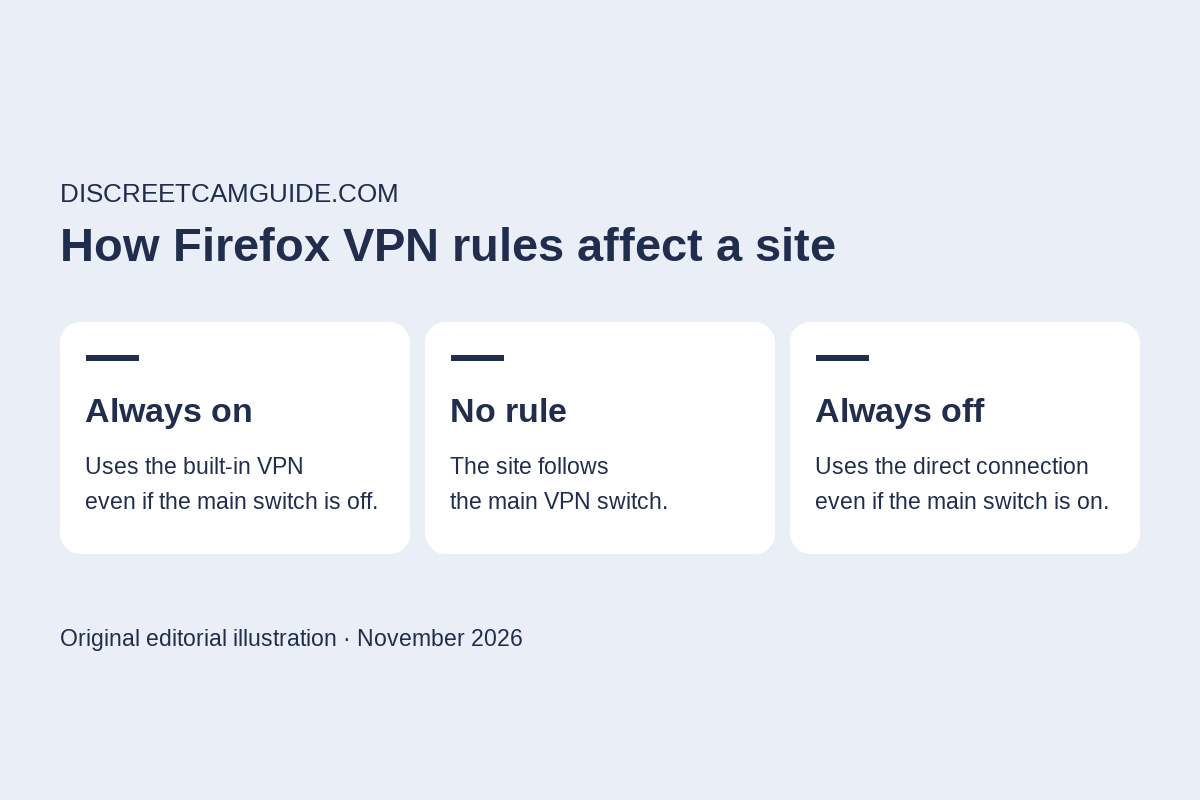
Mozilla introduced website-level rules for its built-in VPN in Firefox 161, released November 24, 2026.
Start with the current site
Mozilla listed this change on November 24. It gives desktop Firefox users with access to the built-in feature a more precise way to choose which sites use it. Check the installed version and the controls visible in your own profile before relying on a rule.
Reference: Firefox 161 release notes.
Audit the rules before signing in
Open Settings, then Privacy and Security. Look for the built-in VPN section and its rule manager. Review saved entries before adding a new one. For each entry, ask whether you still recognize the website and whether the chosen rule still matches the purpose you had in mind.
Mozilla’s instructions describe a website rule as covering the website rather than an individual page. If a guide hands you off to another domain, check that destination independently. Use a familiar public page to inspect the displayed status before opening anything sensitive. If Firefox reports that VPN or rules are unavailable, stop and revisit the settings when you can confirm their state.
Reference: Mozilla’s built-in VPN instructions.
Keep account and browser decisions separate
IP masking changes the network address seen by a visited site. An account you sign in to can still associate actions with your account. The browser can still keep history or site data under its own settings. Review account sign-in, browser storage and camera or microphone permissions separately.
Consider a visit that starts on an editorial guide and then opens a provider’s account page. Write down the two website names, check the rule for each, and decide whether signing in is necessary. The guide’s status can be a useful observation without establishing the status of the provider page.
Reference: Mozilla’s built-in VPN instructions.
Check the boundary when you change devices
Mozilla describes this built-in feature as covering Firefox traffic. If you open a link in a different browser or a native app, review that app’s connection separately. On shared hardware, use a browser profile you control and avoid changing another person’s settings.
Respect platform access rules, including regional eligibility and age verification. If a site becomes unavailable, check the provider’s official availability guidance or contact support. Treat the VPN panel as a routing control and keep any account, device and payment questions on their own checklist.
Reference: Mozilla’s built-in VPN instructions.
Continue with the guides
Sources and editorial scope
Prepared with AI assistance and checked against public vendor documentation. This is not a provider security audit. Read our editorial policy and affiliate disclosure. Provider sites control their accounts, payments and policies.